Veröffentlicht in Tools

TFTP Server PumpKIN

PumpKIN is an open source, fully functional, free TFTP server and TFTP client, which implements TFTP according to RFC1350. It also implements block size option, which allows transfer of files over 32MB, as well as transfer size and transfer timeout options described in RFC2348 and RFC2349.

The primary use of PumpKIN is maintenance of the network equipment (such as router firmware upgrade) that fetches images from TFTP server, although it is also useful for transfering files between parties involved in a conversation over ntalk connection using our T42 software (it also detects ntalk conversation held over now obsolete program ‚wintalk‘).

The main PumpKIN features are:

  • Fully standard-compliant TFTP file transfer
  • Unlimited simultaneous transfers both for TFTP server and client
  • Support for TFTP blocksize option allows transfer of large files if both TFTP server and client support it
  • Convenient GUI
  • Combines TFTP server and TFTP client
  • Originally developed for Windows 95, it reportedly runs on all Win32 platforms: Windows 98, Windows NT, ME, XP
  • Can run in background, taking up a 256 pixels of screen nicely packed as a 16×16 square in your notification tray area
  • Open source for those willing to add missing features, fix bugs and examine code for potential flaws and fun
  • You’re free to torture it the way you want to as long as you preserve original author’s credentials
  • It would cost you nothing unless you’re willing to monetarily express your gratitude and make a donation (yes, it means „free“ or „freeware“, just go and download it)
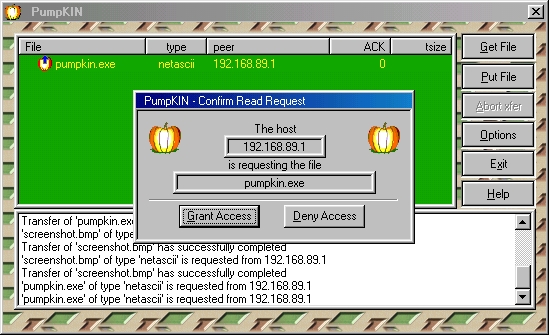
  • The download size is about that of the high quality screenshot below

Note that PumpKIN is not an FTP server, neither it is an FTP client, it is a TFTP server and TFTP client. TFTP is not FTP, these are different protocols. TFTP, unlike FTP, is used primarily for transferring files to and from the network equipment (e.g. your router, switch, hub, whatnot firmware upgrade or backup, or configuration backup and restore) that supports using of TFTP server for, not for general purpose serving downloadable files or retrieving files from the FTP servers around the world.

PumpKIN in action

[QUELLE: http://kin.klever.net/pumpkin]

Veröffentlicht in CISCO

Recovering Catalyst Fixed Configuration Switches from a Corrupted or Missing Image‘

Introduction

This document explains how to recover Cisco Catalyst fixed configuration switches from a corrupt or missing system image or an incorrectly set boot variable. The Catalyst fixed configuration switches that this document describes include the 2940, 2950/2955, 2970, 3550, 3560, 3750 and the 3750 Metro series switches.

Prerequisites

Requirements

If you have not already done so, connect a PC to the console port of the switch. For information on how to connect a terminal to a Catalyst fixed configuration switch, refer to Connecting a Terminal to the Console Port on Catalyst Switches. Use a terminal emulation program such as Microsoft Windows HyperTerminal in order to establish the console session. These are the settings:

  • Bits per second: 9600
  • Data bits: 8
  • Parity: None
  • Stop bits: 1
  • Flow control: None

192-a.gif

Components Used

This document is not restricted to specific software and hardware versions.

The information in this document was created from the devices in a specific lab environment. All of the devices used in this document started with a cleared (default) configuration. If your network is live, make sure that you understand the potential impact of any command.

Conventions

Refer to Cisco Technical Tips Conventions for more information on document conventions.

Problem

When Catalyst fixed configuration switches experience boot errors, these conditions can apply:

  • The switch is in a continuous reboot.
  • The switch displays the switch: prompt.
  • The error loading flash: message appears.

Switch Displays the Switch: Prompt or „Error Loading Flash:“

  • The switch: prompt indicates that the switch has not booted completely and requires the user to complete the boot process.
  • The error loading flash:<image> message indicates that the switch failed to load an image because of a corrupt or missing image.

    The corrupt or missing image can be the result of a failed download. In this case, the image has a bad checksum or a failed software upgrade, and the upgrade procedure was not followed properly. There is the possibility that the user deleted the image but did not replace the image. A boot variable can have been set incorrectly.

With a console session open, you see an error message that is similar to this:

Error loading "flash:c2950-i6q4l2-mz.121-12c.EA1.bin"

Normally, the switch attempts to automatically boot the next valid image in the Flash file system. Here is an example:

Error loading "flash:c2950-i6q4l2-mz.121-12c.EA1.bin"
Interrupt within 5 seconds to abort boot process.
Loading "flash:/c2950-i6q4l2-mz.121-13.EA1.bin"...######
########################################################
 !--- Output suppressed. 

If there is no valid backup image from which to boot, the boot process fails completely. Here is an example:

Error loading "flash:c2950-i6q4l2-mz.121-12c.EA1.bin"
Interrupt within 5 seconds to abort boot process.
Boot process failed...

Step-by-Step Recovery Procedure

Use this solution to solve the problem.

Note: A PC must be attached to the console port of the switch, as the Prerequisites section of this document states.

  1. If the switch is in a continuous reboot, complete one of the procedures in this step, which depends on your switch model.

    Note: If the switch is not in a continuous reboot, but is already at the switch: prompt, proceed directly to Step 2.

      • Catalyst 2940 and 2950 series switches

        192-b.gif

    1. Unplug the power cord.
    2. Hold down the MODE button while you reconnect the power cable to the switch.

      The MODE button is on the left side of the front panel.

    3. Release the MODE button after the STAT LED goes out.

      Note: The LED position can vary slightly, which depends on the model.

      You are now at the switch: prompt.

    4. Proceed to Step 2.
      • Catalyst 2970, 3550, 3560 and 3750 series switches

        192-c.gif

    1. Unplug the power cord.
    2. Hold down the MODE button while you reconnect the power cable to the switch.

      The MODE button is on the left side of the front panel.

    3. Release the MODE button after the LED that is above Port 1x goes out.

      Note: The LED position can vary slightly, which depends on the model.

      You are now at the switch: prompt.

    4. Proceed to Step 2.
      • Catalyst 2955 series switches
    1. Issue a break sequence from the keyboard in order to break into switch: mode.

      The terminal application and operating system that you use determine the break sequence to use. HyperTerminal that runs on Windows 2000 uses Ctrl-Break. For more information, refer to Standard Break Key Sequence Combinations During Password Recovery.

      This example uses HyperTerminal to break into switch: mode on a 2955:

      C2955 Boot Loader (C2955-HBOOT-M) Version 12.1(0.508)EA1, BETA TEST SOFTWARE
      Compiled Wed 30-Oct-02 15:24 by antonino
      WS-C2955T-12 starting...
      Base ethernet MAC Address: 00:03:fd:62:7c:00
      Xmodem file system is available.
      Initializing Flash...
      flashfs[0]: 19 files, 2 directories
      flashfs[0]: 0 orphaned files, 0 orphaned directories
      flashfs[0]: Total bytes: 7741440
      flashfs[0]: Bytes used: 4628480
      flashfs[0]: Bytes available: 3112960
      flashfs[0]: flashfs fsck took 7 seconds.
      ...done initializing flash.
      Boot Sector Filesystem (bs:) installed, fsid: 3
      Parameter Block Filesystem (pb:) installed, fsid: 4
      *** The system will autoboot in 15 seconds *** Send break character to prevent autobooting.
       !--- Wait until you see this message before !--- you issue the break sequence. !--- Enter Ctrl-Break with the use of HyperTerminal. 
      The system has been interrupted prior to initializing the
      flash filesystem.  The following commands will initialize
      the flash filesystem, and finish loading the operating
      system software:
      flash_init
      load_helper
      boot
      switch:
    2. Proceed to Step 2.
  2. Issue the flash_init command and the load_helper command.

    If the Flash has already initialized, you see this:

    switch: flash_init
      Initializing Flash...
      ...The flash is already initialized.
      switch:

    If the Flash has not initialized, you see this:

    switch: flash_init
    Initializing Flash...
    flashfs[0]: 21 files, 2 directories
    flashfs[0]: 0 orphaned files, 0 orphaned directories
    flashfs[0]: Total bytes: 7741440
    flashfs[0]: Bytes used: 4499456
    flashfs[0]: Bytes available: 3241984
    flashfs[0]: flashfs fsck took 7 seconds.
    ...done initializing flash.
    Boot Sector Filesystem (bs:) installed, fsid: 3
    Parameter Block Filesystem (pb:) installed, fsid: 4

    Issue the load_helper command in order to load any boot helper images. Here is an example:

    switch: load_helper
    switch:
  3. Issue the dir flash: command in order to view the contents of the Flash file system.

    Determine if there are any Cisco IOS® image files or image directories in flash:. The Cisco IOS image files are .bin files, and the image directories are named with the image filename, excluding the .bin extension. If no Cisco IOS image files or image directories exist, you see this:

    switch: dir flash:
    Directory of flash:/
    2    -rwx  5        <date>               private-config.text
    3    -rwx  110       <date>               info
    4    -rwx  976       <date>               vlan.dat
    6    -rwx  286       <date>               env_vars
    26   -rwx  1592      <date>               config.text
    8    drwx  1088      <date>               html
    19   -rwx  110       <date>               info.ver
    4393472 bytes available (3347968 bytes used)
    switch: !--- No Cisco IOS images or image directories exist in Flash. 

    If your Flash directory looks like this, proceed directly to Step 4. Step 4 recovers the switch with an Xmodem file transfer.

    If there is still an image in Flash, issue the boot command in order to try to recover the switch. Before you issue the boot command, verify where the Cisco IOS image is stored in the Flash directory. The location in which the image is stored can differ, which depends on your switch model.

    • Catalyst 2940, 2950, and 2955 Flash file system

      The Cisco IOS image file (.bin file) always resides in the flash: directory on Catalyst 2940, 2950 and 2955 series switches. Here is an example:

      switch: dir flash:
      Directory of flash:/
      3    -rwx  2888547   <date>               c2950-i6q4l2-mz.121-13.EA1.bin        
       !--- The Cisco IOS image file (.bin file) is stored in !--- the flash: directory on Catalyst 2940, 2950, and 2955 series switches. 
      4    -rwx  976       <date>               vlan.dat
      6    drwx  832       <date>               html
      22   -rwx  110       <date>               info
      23   -rwx  110       <date>               info.ver
      25   -rwx  38        <date>               env_vars
      
      3132928 bytes available (4608512 bytes used)
       !--- This output is from a Catalyst 2950 switch. Output from a !--- Catalyst 2940 or 2955 varies slightly. 
    • Catalyst 2970, 3550, 3560, and 3750 Flash file system

      The organization of the Flash file system on a Catalyst 2970, 3550, 3560, and 3750 is a little different. You can store the Cisco IOS image file in the flash: directory. However, if you use the Cluster Management Suite (CMS) image in order to manage switches with a web interface, you can store the Cisco IOS image file in its own directory. Issue the dir flash:directory command in order to display the image file in this case.

      switch: dir flash:
      Directory of flash:/
      2    -rwx  976       <date>               vlan.dat
      3    -rwx  386       <date>               system_env_vars
      4    -rwx  5         <date>               private-config.text
      6    -rwx  1554      <date>               config.text
      24   drwx  192       <date>               c3550-i5q3l2-mz.121-13.EA1
       !--- You can store the Cisco IOS image file in its own directory. !--- Name the directory with the image name, but exclude the .bin extension. 
      42   -rwx  33        <date>               env_vars
       !--- Output suppressed. 
      switch: dir flash:c3550-i5q3l2-mz.121-13.EA1
       !--- Issue the dir flash:<directory> !--- command in order to view the Cisco IOS image file. 
      Directory of flash:c3550-i5q3l2-mz.121-13.EA1/
      
      25   drwx  832       <date>               html
      40   -rwx  3993612   <date>               c3550-i5q3l2-mz.121-13.EA1.bin
       !--- This is where the Cisco IOS image file is stored for a CMS image. 
      41   -rwx  252       <date>               info
      
      9992192 bytes available (6006784 bytes used)
       !--- This output is from a Catalyst 3550 switch. Output from a !--- Catalyst 2970, 3560, or 3750 varies slightly. 
      switch:

    Attempt to Boot the Image

    After you have verified where the Cisco IOS image file resides, try to boot the image. Issue either the boot flash:filename command or the boot flash:directory/filename command.

    • Catalyst 2950
      switch: boot flash:c2950-i6q4l2-mz.121-13.EA1.bin      
       !--- This example uses the boot flash:<filename> !--- command on a 2950. 
       Loading "flash:c2950-i6q4l2-mz.121-13.EA1.bin"...###########
       ###########################################################
       !--- Output suppressed. !--- This command syntax is the same for Catalyst 2940 and 2955 series !--- switches. 
    • Catalyst 3550
      switch: boot flash:c3550-i5q3l2-mz.121-13.EA1/c3550-i5q3l2-mz.121-13.EA1.bin     
       !--- This example uses the boot flash:<filename>/<directory> !--- command on a 3550. 
      Loading "flash:c3550-i5q3l2-mz.121-13.EA1/c3550-i5q3l2-mz.121-13.EA1.bin"...####
      ################################################################################           
       !--- Output suppressed. !--- This command syntax is the same for Catalyst 2970, 3560, and 3750 !--- series switches. 

    If you issue the boot command and the result is in a successful bootup, either the default switch> prompt or the hostname> prompt displays.

    Press RETURN to get started!
    Switch>
     !--- The bootup was successful. 

    Be sure to verify that you have configured the correct boot statement on the switch. See the Verify section of this document.

    If you issue the boot command and the command does not result in a successful bootup, either the switch: prompt displays or you are stuck in a continuous reboot again. The only option to recover the switch is an Xmodem file transfer. Step 4 covers this file transfer.

  4. If the boot command has failed or there is no valid image from which to boot in Flash, perform an Xmodem file transfer.

    A typical Xmodem file transfer can take up to 2 hours, which depends on the image size.

    Download the Cisco IOS image (.bin file) to which you want to upgrade from the Software Center (Downloads) – LAN Switching Software (registered customers only) .

    Note: Do not use a CMS image (.tar file). This image is a larger image and takes longer to transfer.

    Issue the dir flash: command in order to compare the size of the image in bytes to the free space that remains in Flash. Here is an example:

    switch: dir flash:
    Directory of flash:/ 
     !--- Output suppressed. 
    3132928 bytes available (4608512 bytes used)
     !--- There are approximately 3 MB of Flash space available for a new image. 

    If necessary, issue the delete command in order to delete any corrupt images that remain. Here is an example:

    switch: delete flash:c2950-i6q4l2-mz.121-12c.EA1.bin         
     !--- Issue the delete flash:<filename> !--- command in order to delete a Cisco IOS image. 
    Are you sure you want to delete "flash:c2950-i6q4l2-mz.121-12c.EA1.bin" (y/n)? y
     !--- Enter y for yes if you want to delete the image. 
    File "flash:c2950-i6q4l2-mz.121-12c.EA1.bin" deleted
    switch:

    The next example shows an Xmodem procedure on a 2955 with the use of HyperTerminal. The procedure is the same for any of the Catalyst fixed configuration switches that this document covers.

    1. Issue the copy xmodem: flash:filename command on the switch.

      Here is an example:

      switch: copy xmodem: flash:c2955-i6q4l2-mz.121-13.EA1.bin
      Begin the Xmodem or Xmodem-1K transfer now...
      CCC
    2. From the top of the HyperTerminal window, choose Transfer > Send File.

      192-d.gif

    3. Choose the Xmodem protocol in the Send File dialog box and click Browse in order to select the Cisco IOS image (.bin file) that you downloaded previously.

      192-e.gif

    4. Click Send in order to begin the Xmodem transfer.

      192-f.gif

      The Xmodem file transfer begins. This transfer can take up to 2 hours, which depends on the size of the image.

      CCCCCCC.........................................................................
      ................................................................................
      ................................................................................
      ................................................................................
      ................................................................................
      ................................................................................
      ................................................................................
      ................................................................................
      .............................................................................
      File "xmodem:" successfully copied to "flash:c2955-i6q4l2-mz.121-13.EA1.bin"
       !--- If the Xmodem file transfer fails for some reason, restart the process. !--- If the Xmodem file transfer is successful, you return to the !--- switch: prompt. 
      switch:
  5. Boot the new image that you just copied over with the Xmodem procedure.

    Issue the boot flash:filename command, as this example shows:

    switch: boot flash:c2955-i6q4l2-mz.121-13.EA1.bin
    Loading "flash:c2955-i6q4l2-mz.121-13.EA1.bin"...###############################
    ################################################################################
     !--- Output suppressed. 
    Press RETURN to get started!
    Switch>
     !--- The bootup was successful. 

    Be sure to verify that your boot statements are set correctly.

How to Speed Up Xmodem Recovery

When a user tries to recover the switch from a corrupted or missing IOS, the copy xmodem: flash:[IOS filename] command might not be displayed under the switch: prompt. The copy command might be displayed under the switch: prompt, but not the copy xmodem: command.

Complete these steps in order to speed up the Xmodem recovery:

  1. Set the baud rate to 115200 on the switch: prompt.
    switch: set BAUD 115200
     !--- The screen goes blank after you enter this command. 
  2. Restart HyperTerminal.
  3. Under COM PORT properties, select the bits per second as 115200. The switch: prompt is displayed.
  4. Start the Xmodem recovery.
  5. After the Xmodem recovery, set the BAUD rate back to 9600. If the set BAUD 9600 command does not bring the baud rate to 9600, issue the unset BAUD command in order to bring the baud rate to a default value of 9600 bps.

Verify

Complete these steps:

  1. Issue the show version command in order to verify the current version of software that you run.

    Here is an example:

    2955#show version
     Cisco Internetwork Operating System Software
     IOS (tm) C2955 Software (C2955-I6Q4L2-M), Version 12.1(13)EA1, RELEASE SOFTWARE
      !--- This is the current version of software. 
  2. Issue the dir flash:filename command in order to display the Cisco IOS image (.bin file) on a Catalyst 2940, 2950 or 2955.
    2950#dir flash:
    Directory of flash:/
    3  -rwx           5   Mar 01 1993 00:12:55  private-config.text
    4  -rwx     2905856   Jan 01 1970 03:06:25  c2955-i6q4l2-mz.121-13.EA1.bin
     !--- The Cisco IOS image (.bin file) is stored in flash: !--- on a Catalyst 2940, 2950 or 2955. !--- Output suppressed. 

    If you run a CMS image on a Catalyst 2970, 3550, 3560, or 3750, you can store the Cisco IOS image in an image directory. Here is an example:

    3550#dir flash:
    Directory of flash:/
    2  -rwx         976   Mar 01 1993 21:47:00  vlan.dat
    4  -rwx           5   Mar 06 1993 23:32:04  private-config.text
    6  -rwx        1554   Mar 06 1993 23:32:04  config.text
    7  drwx         192   Mar 01 1993 00:14:02  c3550-i5q3l2-mz.121-13.EA1
     !--- Notice the "d" for directory in the permission statement. !--- This is an image directory that is installed when you upgrade the !--- switch with a CMS image. !--- The Cisco IOS image (.bin file) is inside this directory. 
    5  -rwx     3823261   Mar 01 1993 00:46:01  c3550-i5q3l2-mz.121-12c.EA1.bin          
     !--- This is another Cisco IOS image (.bin file). 
    8  -rwx          33   Mar 01 1993 00:14:06  env_vars
    9  -rwx         384   Mar 01 1993 00:14:06  system_env_vars
    15998976 bytes total (6168576 bytes free)
     !--- This output is from a Catalyst 3550 switch. Output from a !--- Catalyst 2970, 3560, or 3750 varies slightly. 
    3550#

    You may need to issue the dir flash:directory command on a Catalyst 3550 in order to display the Cisco IOS image (.bin file). Here is an example:

    3550#dir flash:c3550-i5q3l2-mz.121-13.EA1
    Directory of flash:/c3550-i5q3l2-mz.121-13.EA1/
    23  drwx         832   Mar 01 1993 00:12:00  html
    40  -rwx     3993612   Mar 01 1993 00:14:02  c3550-i5q3l2-mz.121-13.EA1.bin
    41  -rwx         252   Mar 01 1993 00:14:02  info
    15998976 bytes total (6168576 bytes free)
     !--- This output is from a Catalyst 3550 switch. Output from a !--- Catalyst 2970, 3560, or 3750 varies slightly. 
    3550#
  3. Issue the show boot command in order to verify that the boot statement is set correctly.

    Here is an example:

    Switch#show boot
    BOOT path-list:
     !--- No boot system statement is set in this case. !--- Output suppressed. 

    Note: Boot statements do not display in the configuration or when you issue the show run command on any of the fixed configuration switches that this document covers. You must issue the show boot command in order to display boot statements.

    If no boot statement is set or if the boot statement points to an old or missing version of software, configure the correct boot statement. Issue the boot system flash:filename command.

    2955#configure terminal
    2955(config)#boot system flash:c2955-i6q4l2-mz.121-13.EA1.bin
     !--- This is how to set a boot system statement on a Catalyst 2940, 2950, or 2955. 
    2955(config)#end
    2955#
    2955#show boot
    BOOT path-list:       flash:c2955-i6q4l2-mz.121-13.EA1.bin      
     !--- Output suppressed. 

    If you use a CMS image on a Catalyst 2970, 3550, 3560, or 3750, you can store the Cisco IOS image (.bin file) in its own image directory. Issue the boot system flash:directory/filename command. Here is an example:

    3550#configure terminal
    3550(config)#boot system flash:c3550-i5q3l2-mz.121-13. EA1/c3550-i5q3l2-mz.121-13.EA1.bin
     !--- This command should be on one line. !--- This is how to set a boot system statement on a Catalyst !--- 3550 if the Cisco IOS image (.bin file) is in its own image directory. 
    3550#end
    3550#
    3550#show boot
    BOOT path-list: flash:c3550-i5q3l2-mz.121-13.EA1/c3550-i5q3l2-mz.121-13.EA1.bin
     !--- Output suppressed. 
[QUELLE: http://www.cisco.com/en/US/products/hw/switches/ps628/products_tech_note09186a0080169696.shtml]
Veröffentlicht in CISCO

Software Upgrade Procedure

Prerequisites

Requirements

There are no specific requirements for this document.

Components Used

The information in this document is based on the Cisco IOS Software Release 12.0 or later.

The information in this document was created from the devices in a specific lab environment. All of the devices used in this document started with a cleared (default) configuration. If your network is live, make sure that you understand the potential impact of any command.

Conventions

Refer to the Cisco Technical Tips Conventions for more information on document conventions.

Background Information

Several protocols are available to copy the Cisco IOS image into the Cisco routers. The most commonly used protocol is TFTP. Other protocols include ftp, http, https, scp, and rcp. If necessary, you can copy an image from one device to another. For more information, refer to the Copying From One Router to Another section of the How To Copy a System Image from One Device to Another document.

This section describes how to install a TFTP server, how to establish a console session with the router, and the router boot problems.

Install a TFTP Server

A Trivial File Transfer Protocol (TFTP) server application must be installed on a TCP/IP-ready workstation or PC. After the application is installed, you must perform a minimal level of configuration.

  1. Download a TFTP server. Refer to TFTP Server Selection and Use for more information.
  2. Configure the TFTP application to operate as a TFTP server instead of a TFTP client.
  3. Specify the outbound file directory. This is the directory in which the Cisco IOS software images are stored. Most TFTP applications provide a setup routine in order to assist in these configuration tasks.

Establish a Console Session with the Router

Even if it is possible to connect to the router through a Telnet session, Cisco recommends that you connect directly to the router through the console port because, if something goes wrong during the upgrade, you might need to be physically present next to the router to power-cycle it. Moreover, the Telnet connection is lost while the router reboots during the upgrade procedure.

A rolled cable, usually a flat black cable, connects the console port of the router to one of the COM ports of the PC.

When the PC is connected to the console port of the router, open HyperTerminal on the PC, and use these settings:

Speed 9600 bits per second

     8 databits

     0 parity bits

     1 stop bit

     No Flow Control

If garbage characters appear in the HyperTerminal session, either you have not set the HyperTerminal properties properly or the config-register of the router is set to a non-standard value for which the console connection speed is higher than 9600 bps. In order to check the value of the config-register, issue the show version command. The config-register values appears in the last line of the output. Verify that this value is set to 0x2102 or 0x102.

Note: In order for a configuration register change to take effect, you must reload the router.

When you are sure that the console speed is set to 9600 bps on the router side, you should check the HyperTerminal properties. Refer to Applying Correct Terminal Emulator Settings for Console Connections for more information on how to set the HyperTerminal properties.

Router Boot Problems

When you are connected to the console port of the router, you might notice that the router is either in ROMmon or Boot mode. These two modes are used for recovery and diagnostic procedures. If you do not see the usual router prompt, you should use these recommendations in order to proceed with the upgrade procedure installation:

  • The router boots in ROMmon mode, and this message appears when you issue the dir flash: command:
    rommon 1 >dir flash: 
    device does not contain a valid magic number 
    dir: cannot open device "flash:" 
    rommon 2 >

    This error message displays when the Flash is empty or the filesystem is corrupted. Refer to Xmodem Console Download Procedure Using ROMmon for more information.

    Note: You might also need to consult the Boot Failure procedures specific to your platform. Choose your platform from the Product Support Selector in order to locate these procedures. Look in the Troubleshooting section of each document.

  • The router boots in boot mode with these messages on the console:
    router(boot)>
    device does not contain a valid magic number
    boot: cannot open "flash:"
    boot: cannot determine first file name on device "flash:"

    These error messages display in the console output when the Flash is empty or when the file system is corrupted. Copy a valid image on the Flash as described in the procedures provided in this document.

    Note: You might also need to consult the Boot Failure procedures specific to your platform. Choose your platform from the Product Support Selector in order to locate these procedures. Look in the Troubleshooting section of each document.

Software Installation and Upgrade Procedures

This section covers these topics:

Step 1: Select a Cisco IOS Software Image

Your first step in the upgrade procedure is to select the correct Cisco IOS software release and feature set. This step is very important, and these factors can affect the decision for which Cisco IOS you should select:

  • Memory requirement: The router should have sufficient disk or flash memory to store the Cisco IOS. The router should also have sufficient memory (DRAM) to run the Cisco IOS. If the router does not have sufficient memory (DRAM), the router will have boot problems when it boots through the new Cisco IOS.
  • Interfaces and modules support: You must ensure that the new Cisco IOS supports all the interfaces and modules in the router.
  • Software feature support: You must ensure that the new Cisco IOS supports the features used with the old Cisco IOS.

Refer to How to Choose a Cisco IOS Software Release for information on how to select the correct software version and feature set.

Step 2: Download the Cisco IOS Software Image to the TFTP Server

Download the Cisco IOS Software image onto your workstation or PC from the Download Software Area (registered customers only) .

Step 3: Identify the File System to Copy the Image

The file system type „flash“ or „disk“ is used to store the Cisco IOS image. The show file system command output shows the list of file systems available on the router. The common „disk/flash“ file systems supported in Cisco routers have prefixes such as flash:, slot0:, slot1:, disk0: and disk1:. It should have sufficient space to store the Cisco IOS image. You can use the show file system or the dir file_system command in order to find the free space.

2600#show file system
File Systems:

     Size(b)     Free(b)      Type  Flags  Prefixes
           -           -    opaque     rw   archive:
           -           -    opaque     rw   system:
       29688       20571     nvram     rw   nvram:
           -           -    opaque     rw   null:
           -           -   network     rw   tftp:
           -           -    opaque     ro   xmodem:
           -           -    opaque     ro   ymodem:
* 49807356 20152636 flash rw flash:
           -           -    opaque     wo   syslog:
2800#show file system
File Systems:

     Size(b)     Free(b)      Type  Flags  Prefixes
           -           -    opaque     rw   archive:
           -           -    opaque     rw   system:
           -           -    opaque     rw   null:
           -           -   network     rw   tftp:
           -           -    opaque     ro   xmodem:
           -           -    opaque     ro   ymodem:
* 64016384 15470592 disk rw flash:#
      245752      239218     nvram     rw   nvram:
           -           -    opaque     wo   syslog:
3600#show file system
File Systems:

     Size(b)     Free(b)      Type  Flags  Prefixes
           -           -    opaque     rw   archive:
           -           -    opaque     rw   system:
      129016      126071     nvram     rw   nvram:
           -           -    opaque     rw   null:
           -           -   network     rw   tftp:
* 33030140 20511708 flash rw flash:
  16777212 16777212 flash rw slot0:
    16515068 8038516 flash rw slot1:
           -           -    opaque     rw   xmodem:
           -           -    opaque     rw   ymodem:
3700#show file system
File Systems:

     Size(b)     Free(b)      Type  Flags  Prefixes
           -           -    opaque     rw   archive:
           -           -    opaque     rw   system:
       57336       51389     nvram     rw   nvram:
           -           -    opaque     rw   null:
           -           -   network     rw   tftp:
           -           -    opaque     ro   xmodem:
           -           -    opaque     ro   ymodem:
* 63881216 22765568 disk rw flash:#
    31932416 31932416 disk rw slot0:#
           -           -    opaque     wo   syslog:

Step 4: Prepare for the Upgrade

You should consider these items before you upgrade the Cisco IOS:

  • If the router has sufficient memory (flash, slot or disk), you can store both the old Cisco IOS and the new Cisco IOS. You can boot the router in the ROMMON mode and boot the old Cisco IOS in case of boot failure with new Cisco IOS. This method saves time if you must roll back the Cisco IOS.
  • Backup the configuration from the router because some of the Cisco IOS releases add default configurations. This newly added configuration may conflict with your current configuration. Compare the configuration of the router after the Cisco IOS upgrade with the configuration backed up before the upgrade. If there are differences in the configuration, you must ensure they do not affect your requirements.

Step 5: Verify that the TFTP Server has IP Connectivity to the Router

The TFTP server must have a network connection to the router and must be able to ping the IP address of the router targeted for a TFTP software upgrade. In order to achieve this connection, the router interface and the TFTP server must have an IP address in the same range or a default gateway configured.

Check the IP address of the TFTP server in order to verify this configuration.

Step 6: Copy IOS Image to the Router

Now that you have IP connectivity and can ping between the computer that acts as a TFTP server and the router, you can copy the Cisco IOS Software image into the Flash.

Note: Before you copy the image, ensure that you have started the TFTP server software on your PC, and that you have the file name mentioned in the TFTP server root directory. Cisco recommends that you keep a backup of the router and access server configuration before you upgrade. The upgrade does not affect the configuration, which is stored in nonvolatile RAM [NVRAM]. However, this situation might happen if the right steps are not followed properly.

Note:  In this section you are presented with three examples that describe how to copy the Cisco IOS image. You can use any one of these methods in order to copy the image.

Example 1: Copy the image to flash: from TFTP server

Upgrade the new image from a TFTP server. Use the copy tftp: flash: command in order to copy the image from TFTP server to the flash.

2600>enable
Password:xxxxx 
2600#copy tftp: flash:
Address or name of remote host []? 10.10.10.2
 !--- 10.10.10.2 is the IP address of the TFTP server 
Source filename []? c2600-adventerprisek9-mz.124-12.bin
Destination filename [c2600-adventerprisek9-mz.124-12.bin]?y 
Accessing tftp://10.10.10.2/c2600-adventerprisek9-mz.124-12.bin...
Erase flash: before copying? [confirm]y 
 !--- If there is not enough memory available, erase the Flash. 
 !--- If you have sufficient memory you can type n and press enter 
Erasing the flash filesystem will remove all files! Continue? [confirm]y Erasing device... eeeeeeeeeeeeeeeeeeeeeeeeeeeeeeeeeeeeeeeeeeeeeeeeeeeeee eeeeeeeeee ...erased Erase of flash: complete
Loading c2600-adventerprisek9-mz.124-12.bin from 10.10.10.2 (via Ethernet0/0): !!!!!!!!
!!!!!!!!!!!!!!!!!!!!!!!!!!!!!!!!!!!!!!!!!!!!!!!!!!!!!!!!!!!!!!!!!!!!!!!!!
!!!!!!!!!!!!!!!!!!!!!!!!!!!!!!!!!!!!!!!!!!!!!!!!!!!!!!!!!!!!!!!!!!!!!!!!!
!!!!!!!!!!!!!!!!!!!!!!!!!!!!!!!!!!!!!!!!!!!!!!!!!!!!!!!!!!!!!!!!!!!!!!!!!
!!!!!!!!!!!!!!!!!!!!!!!!!!!!!!!!!!!!!!!!!!!!!!!!!!!!!!!!!!!!!!!!!!!!!!!!!
!!!!!!!!!!!!!!!!!!!!!!!!!!!!!!!!!!!!!!!!!!!!!!!!!!!!!!!!!!!!!!!!!!!!!!!!!
!!!!!!!!!!!!!!!!!!!!!!!!!!!!!!!!!!!!!!!!!!!!!!!!!!!!!!!!!!!!!!!!!!!!!!!!!
!!!!!!!!!!!!!!!!!!!!!!!!!!!!!!!!!!!!!!!!!!!!!!!!!!!!!!!!!!!!!!!!!!!!!!!!!
!!!!!!!!!!!!!!!!!!!!!!!!!!!!!!!!!!!!!!!!!!!!!!!!!!!!!!!!!!!!!!!!!!!!!!!!!
!!!!!!!!!!!!!!!!!!!!!!!!!!!!!!!!!!!!!!!!!!!!!!!!!!!!!!!!!!!!!!!!!!!!!!!!!
!!!!!!!!!!!!!!!!!!!!!!!!!!!!!!!!!!!!!!!!!!!!!!!!!!!!!!!!!!!!!!!!!!!!!!!!!
!!!!!!!!!!!!!!!!!!!!!!!!!!!!!!!!!!!!!!!!!!!!!!!!!!!!!!!!!!!!!!!!!!!!!!!!!
!!!!!!!!!!!!!!!!!!!!!!!!!!!!!!!!!!!!!!!!!!!!!!!!!!!!!!!!!!!!!!!!!!!!!
[OK - 29654656/49807356 bytes]

Verifying checksum...  OK (0xAC8A)
29654656 bytes copied in 56.88 secs (80383 bytes/sec)

The copy process takes several minutes. This time differs from network to network. When the copy process is in progress, messages are displayed that indicate which file has been accessed.

The exclamation point „!“ indicates that the copy process is in progress. Each exclamation point indicates that ten packets have transferred successfully. A checksum verification of the image occurs after the image is written to Flash memory.

Example 2: Copy the image to slot1: from TFTP server

Upgrade the new image from a TFTP server. If you choose the slot1: file systems, use the copy tftp: slot1: command in order to copy the image from TFTP server to slot1.

3600#copy tftp: slot1:
Address or name of remote host []? 171.68.173.10
 !--- 171.68.173.10 is the IP address of the TFTP server 
Source filename []? c3640-i-mz.122-7b.bin
Destination filename [c3640-i-mz.122-7b.bin]?
Accessing tftp://171.68.173.10/c3640-i-mz.122-7b.bin...
Erase slot1: before copying? [confirm]n 
 !--- You specify "n" because there is enough memory available. 
Loading c3640-i-mz.122-7b.bin from 171.68.173.10 (via Ethernet1/0): 
!!!!!!!!!!!!!!!!!!!!!!!!!!!!!!!!!!!!!!!!!!!!!!!!!!!!!!!!!!!!!!!!!!!!!!!!!
!!!!!!!!!!!!!!!!!!!!!!!!!!!!!!!!!!!!!!!!!!!!!!!!!!!!!!!!!!!!!!!!!!!!!!!!!
!!!!!!!!!!!!!!!!!!!!!!!!!!!!!!!!!!!!!!!!!!!!!!!!!!!!!!!!!!!!!!!!!!!!!!!!!
!!!!!!!!!!!!!!!!!!!!!!!!!!!!!!!!!!!!!!!!!!!!!!!!!!!!!!!!!!!!!!!!!!!!!!!!!
!!!!!!!!!!!!!!!!!!!!!!!!!!!!!!!!!!!!!!!!!!!!!!!!!!!!!!!!!!!!!!!!!!!!!!!!!
!!!!!!!!!!!!!!!!!!!!!!!!!!!!!!!!!!!!!!!!!!!!!!!!!!!!!!!!!!!!!!!!!!!!!!!!!
!!!!!!!!!!!!!!!!!!!!!!!!!!!!!!!!!!!!!!!!!!!!!!!!!!!!!!!!!!!!!!!!!!!!!!!!!
!!!!!!!!!
[OK - 5996844/11993088 bytes]

Verifying checksum...  OK (0x13F0)
5996844 bytes copied in 67.708 secs (89505 bytes/sec)
3600#

The copy process takes several minutes. This time differs from network to network. When the copy process is in progress, messages are displayed that indicate which file has been accessed.

The exclamation point „!“ indicates that the copy process is in progress. Each exclamation point indicates that ten packets have transferred successfully. A checksum verification of the image occurs after the image is written to Flash memory.

Example 3: Copy the IOS image to flash: from another router

You can configure a router as TFTP server. If you choose the flash: file systems, use the copy tftp: flash: command in order to copy the image from TFTP server to flash.

Router-tftp(config)#tftp-server flash:c7200-a3js-mz.122-15.T16.bin 
 !--- Router-tftp is configured as the TFTP server. 
7200#copy tftp: flash:
Address or name of remote host []? 172.22.1.84
Source filename []? c7200-a3js-mz.122-15.T16.bin
Destination filename [c7200-a3js-mz.122-15.T16.bin]?
Accessing tftp://172.22.1.84/c7200-a3js-mz.122-15.T16.bin...
Erase flash: before copying? [confirm]n
Loading c7200-a3js-mz.122-15.T16.bin from 172.22.1.84 (via GigabitEthernet0/1):
!!!!!!!!!!!!!!!!!!!!!!!!!!!!!!!!!!!!!!!!!!!!!!!!!!!!!!!!!!!!!!!!!!!!!!!!!!!
[OK - 19187152 bytes]

Verifying checksum...  OK (0x15C1)
19187152 bytes copied in 482.920 secs (39732 bytes/sec)

Step 7: Verify the Cisco IOS Image in the File System

Verify the image in the file system.

2600#dir flash: 
Directory of flash:/

    1  -rw-    29654656                    <no date>  c2600-adventerprisek9-mz.1
24-12.bin

49807356 bytes total (20152636 bytes free)
2600#verify flash:c2600-adventerprisek9-mz.124-12.bin 
Verifying file integrity of flash:c2600-adventerprisek9-mz.124-12.bin...........
................................................................................

................................................................................
.............................Done!
Embedded Hash   MD5 : 1988B2EC9AFAF1EBD0631D4F6807C295
Computed Hash   MD5 : 1988B2EC9AFAF1EBD0631D4F6807C295
CCO Hash        MD5 : 141A677E6E172145245CCAC94674095A

Signature Verified
Verified flash:c2600-adventerprisek9-mz.124-12.bin

Refer to System Message Guide for information about different %SIGNATURE error messages and the necessary action to be taken.

Step 8: Verify the Configuration Register

config-register value—Use the show version command in order to check this value. The value is displayed in the last line of the show version output. It should be set to 0x2102.

2600#configure terminal
Enter configuration commands, one per line.  End with CNTL/Z. 
2600(config)#config-register 0x2102 
2600(config)#^Z

Step 9: Verify the Boot Variable

IOS image in the flash—If the first file in the Flash is not the Cisco IOS Software image, but a configuration file, or something else, then you need to configure a boot system statement in order to boot the specified image. Otherwise, the router tries to boot with the configuration file or the first file in the Flash, which does not work. If there is only one file in the Flash and it is the Cisco IOS Software image, this step is not necessary.

2600#show run | include boot
boot system flash:c2600-adventerprisek9-mz.123-21.bin

2600#configure terminal
Enter configuration commands, one per line.  End with CNTL/Z. 
2600(config)#no boot system
2600(config)#boot system flash:c2600-adventerprisek9-mz.124-12.bin
2600(config)#^Z

IOS image in the slot1—The boot variable that points to the old Cisco IOS needs to be removed first, and then the router needs to be configured to boot through the new Cisco IOS.

 3600# show run | include boot
boot system slot1:c3640-i-mz.120-22.bin

3600#configure terminal
Enter configuration commands, one per line.  End with CNTL/Z. 
3600(config)#no boot system
3600(config)#boot system slot1:c3640-i-mz.122-7b.bin
3600(config)#^Z

Step 10: Save the Configuration and Reload the Router

Save the configuration, and reload the Router.

2600# write memory
2610# reload
Proceed with reload? [confirm]
Jan 24 20:17:07.787: %SYS-5-RELOAD: Reload requested by console. Reload Reason:
Reload Command.

Step 11: Verify the Cisco IOS Upgrade

Verify that the router runs with the proper image.

After the reload is complete, the router should run the desired Cisco IOS Software image. Use the show version command in order to verify the Cisco IOS software.

2600#show version
00:22:25: %SYS-5-CONFIG_I: Configured from console by console
Cisco IOS Software, C2600 Software (C2600-ADVENTERPRISEK9-M), Version 12.4(12),
RELEASE SOFTWARE (fc1)
Technical Support: http://www.cisco.com/techsupport
Copyright (c) 1986-2006 by Cisco Systems, Inc.
Compiled Fri 17-Nov-06 11:18 by prod_rel_team

ROM: System Bootstrap, Version 12.2(8r) [cmong 8r], RELEASE SOFTWARE (fc1)

2610 uptime is 22 minutes
System returned to ROM by reload
System image file is "flash:c2600-adventerprisek9-mz.124-12.bin"

Here is the show version output of 3600 router that has Cisco IOS in the slot1:

3600#show version
Cisco Internetwork Operating System Software
IOS (tm) 3600 Software (C3640-I-M), Version 12.2(7b), RELEASE SOFTWARE (fc1)
Copyright (c) 1986-2002 by cisco Systems, Inc.
Compiled Mon 04-Mar-02 20:23 by pwade
Image text-base: 0x600089A8, data-base: 0x60A6A000

ROM: System Bootstrap, Version 11.1(19)AA, EARLY DEPLOYMENT RELEASE SOFTWARE (f)

Router uptime is 2 minutes
System returned to ROM by reload
System image file is "slot1:c3640-i-mz.122-7b.bin"

cisco 3640 (R4700) processor (revision 0x00) with 59392K/6144K bytes of memory.

Processor board ID 10524422
R4700 CPU at 100Mhz, Implementation 33, Rev 1.0
Bridging software.
X.25 software, Version 3.0.0.
4 Ethernet/IEEE 802.3 interface(s)
DRAM configuration is 64 bits wide with parity disabled.
125K bytes of non-volatile configuration memory.
4096K bytes of processor board System flash (Read/Write)
20480K bytes of processor board PCMCIA Slot0 flash (Read/Write)
20480K bytes of processor board PCMCIA Slot1 flash (Read/Write)

Configuration register is 0x2102
[QUELLE: http://www.cisco.com/en/US/products/ps5855/products_tech_note09186a00801fc986.shtml]