Veröffentlicht in Software

Office-Dateien im Netzwerk öffnen

Beim Öffnen von Word- oder Excel-Dokumenten über den Dateiserver ist manchmal nur die schreibgeschützte Variante im Angebot. Ursache für das Schreibschutz-Problem können die aktivierte Vorschau und Detailansicht in der Word-Statusleiste sein oder die erweiterten Berechtigungsprüfungen und Sicherheitseinstellungen, die mit Office 2007 eingeführt wurden. Diese Hürden lassen sich jedoch recht leicht überspringen, sodass Office exklusiv auf die Datei zugreifen kann.

Zunächst sollten Sie die jeweiligen Netzwerkpfade zu den „vertrauenswürdigen Speicherorten“ hinzufügen. Sobald Sie die folgenden Registry-Werte ändern, werden die Dateien dann direkt und ohne Schreibschutz geöffnet. Für Word gilt „HKEY_CURRENT_USER \ Software \ Microsoft \ Office \ [Version] \ Word \ Options“, für Excel „HKEY_CURRENT_USER \ Software \ Microsoft \ Office \ [Version] \ Excel \ Options“ und für PowerPoint „HKEY_CURRENT_USER \ Software \ Microsoft \ Office \ [Version] \ PowerPoint \ Options“. Dort müssen Sie dann jeweils einen neuen DWORD-Wert (32-Bit) mit dem Namen „DisableRobustifiedUNC“ und dem Wert „1“ erstellen.

Quelle: http://www.it-administrator.de/themen/server_client/147997.html
Veröffentlicht in Exchange

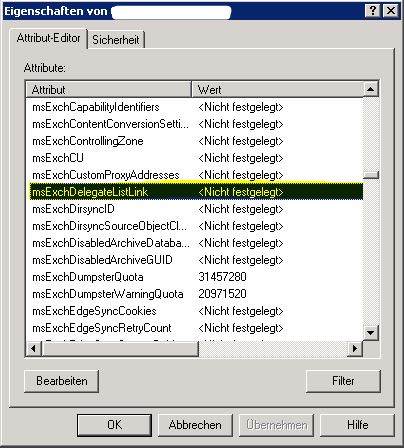
Exchange 2010 – msExchDelegateListLink – Vollzugriff auf Postfach

Hat man sich im Exchange 2010 einen Vollzugriff auf ein Postfach hinterlegt und das Postfach dann auch im Outlook 2010/2013 eingebunden und auch nachher wieder entfernt sowie auch den Vollzugriff wieder entfernt, so bleibt im AD Attribut „msExchDelegateListLink“ der User bestehen und das Postfach bleibt im Outlook sichtbar aber mit keinerlei Zugriffsrechten mehr darauf.

msExchDelegateListLink

Dieser kann am einfachsten mit ADSI-EDITOR entfernt werden.
Nach der Entfernung dauert es ein paar Minuten und das Postfach verschwindet aus dem Outlook.

Veröffentlicht in VPN

How to store username/password for the SSL VPN Client

You can store the username/password in a file.

This avoids the enduring pop-up-window asking for your credentials.

  1. Goto the Astaro SSL VPN client installation directory, this is normally stored in:“C:\Program Files\Astaro\Astaro SSL VPN Client“
  2. Change to the subdirectory „config“.
  3. Change into the appropriate connection directory, this is normally called something like „username@remote-ASG-DNS-name“.
  4. Edit the .ovpn file using Windows „Notepad“ editor or a similar „dumb“ editor, not Winword!
    At the end of the .ovpn file, insert the following line:
    auth-user-pass SecretPasswordFile.txt
  5. Save the ovpn file and create the new file SecretPasswordFile.txt inside the config-Directory.
  6. Again, use the notepad editor. In the file, simply insert two lines, the first line with the username, the second with the password of the SSL VPN user, and save the file.Example:
    username
    mysecretpassword

If you now connect to the ASG using the SSL VPN connection you just edited, no username/password prompt will occur.

Quelle: http://www.sophos.com/de-de/support/knowledgebase/116185.aspx