mit folgender Abfrage in Powershell wird der installierte Product Key ausgelesen
(Get-WmiObject -query 'select * from SoftwareLicensingService').OA3xOriginalProductKey… der IT blog
mit folgender Abfrage in Powershell wird der installierte Product Key ausgelesen
(Get-WmiObject -query 'select * from SoftwareLicensingService').OA3xOriginalProductKey# Festlegen der Hyper-V Server
$meineHyperVServer = "Server1","Server1"
# Informationen die wir darstellen wollen:
# VM Name (VMName)
# Status der VM (State)
# Hyper-V Server Host (Host)
# Anzahl verwendeter CPUs (ProcessorCount)
# Zugewiesener Arbeitsspeicher (MemoryAssigned)
# Maximaler Arbeitsspeicher (MemoryMaximum)
# Minimaler Arbeitsspeicher (MemoryMinimum)
# Dynamisches RAM zugewiesen? (DynamicMemoryEnabled)
# Notizen der virtuellen Maschine (Notes)
# Leeres Array um die VM Informationen darin zu speichern
$AlleVMs = @()
# Für jeden Hyper-V Server in $meineHyperVServer wird diese Schleife durchlaufen
foreach ($hyperv in $meineHyperVServer){
# Listet alle Virtuellen Maschinen auf dem entsprechenden Hyper-V Server auf
$AlleVMs += Get-VM -ComputerName $hyperv | Select VMName,`
# Unter "Status" wird mit Switch/Case geprüft ob es bestimmte Stati hat und übersetzt diese in deutsch
@{Label="Status";Expression={switch($_.State){"Running"{"Läuft"} "Off"{"Aus"}}}},`
# Host auf dem die Virtuelle Maschine läuft
@{Label="Host";Expression={$_.Computername}},`
# Anzahl Prozessorkerne die für die VM eingerichtet sind
@{Label="CPUCount";Expression={$_.ProcessorCount}}, `
# Aktuell verwendeter Arbeitsspeicher der VM
@{Label="MemAssign";Expression={[math]::Round($_.MemoryAssigned / 1GB,0)}}, `
# Maximal möglicher Arbeitsspeicher der VM
@{Label="MemMax";Expression={[math]::Round($_.MemoryMaximum / 1GB,0)}},`
# Minimaler Arbeitsspeicher der VM
@{Label="MemMin";Expression={[math]::Round($_.MemoryMinimum / 1GB,0)}},`
# Ist der VM ein dynamischer Arbeitsspeicher zugewiesen?
@{Label="DynamicRAM";Expression={if ($_.DynamicMemoryEnabled -eq $true){"Ja"} else {"Nein"}}},`
# Notizen der VM
@{Label="Notizen";Expression={$_.Notes}},`
# Grösse der HDDs pro VM Total (Sum) in GB
@{Label="TotalHDDGrösse";Expression={[math]::Round((((get-vm -ComputerName $hyperv -Name $_.VMName| Get-VMHardDiskDrive).path | Get-VHD -ComputerName $hyperv).FileSize | Measure-Object -Sum).Sum/ 1GB,2).toString() + " GB"}}
}
# Ausgabe der zusammengestellten VMs als GitterDarstellung (GridView)
$AlleVMs | Out-GridView -Title "VM Übersicht"Um eine SharedMailbox zu löschen deren Azure Active Directory (Entra ID) nicht mehr vorhanden ist, bin ich wie folgt vorgegangen.
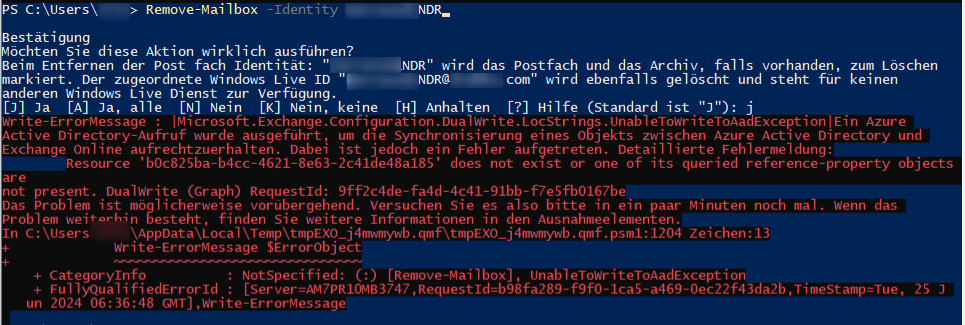
Confirm
Are you sure you want to perform this action?
Delete all existing information about user Identity:’MAILBOXNAME‘?. This operation will clear existing values from Previous home MDB and Previous Mailbox GUID of the
user. After deletion, reconnecting to the previous mailbox that existed in the cloud will not be possible and any content it had will be unrecoverable PERMANENTLY. This operation
will also create an async task to purge all the mail data. You can check the status by running ‚Get-User | fl Workload‚ and check if DesiredMailboxWorkloads is set to
null. Do you want to continue? Y
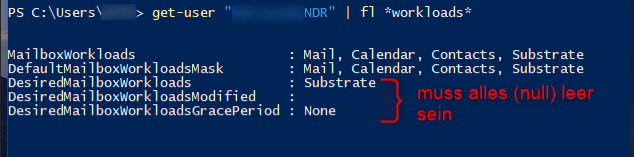
mit Get-User „MAILBOXNAME“ | fl *workloads*
kann dann geprüft werden ob die erforderlichen DesiredMailboxWorkls auf (null) sind bzw. ob die Mailbox dann gelöscht wurde.