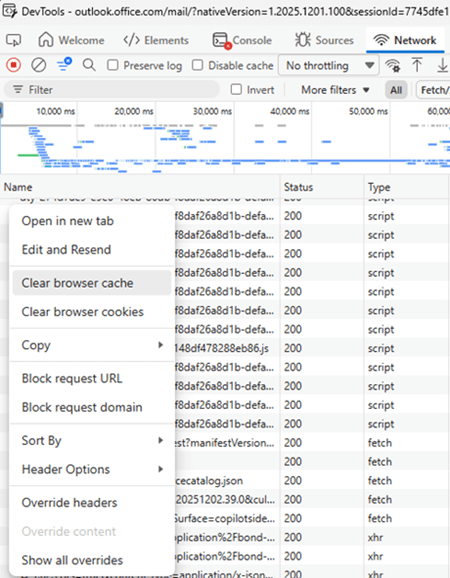
Um im Outlook NEW den Cache leere zu können ist wie folgt vorzugehen
cmd starten und folgenden Befehl eingeben
olk.exe --devtools
anschließend auf den Tab „Network“ wechseln und dort alles markieren und rechte maustaste auf den ausgewählten Bereich und „Clear browser cache“ wählen.
Recently we had a user report that their Sent Items folder had disappeared from Outlook. Upon investigation we discovered that the “Sent Items” folder was missing from both Outlook and OWA. We were able to do a search for a recently sent email, and find it, but we were unable to locate where this email was being stored (and in our testing we would receive an error when trying to retrieve the body of the message).
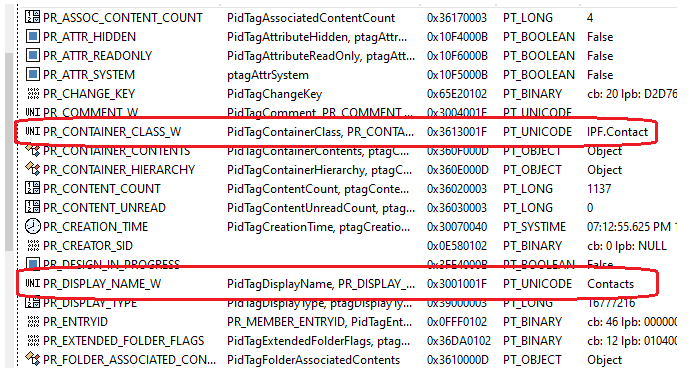
Eventually we discovered that the user now had 2 “Contacts” folders, and sent items were now being stored in one of them. It seems as though the “Sent Items” folder in Exchange for this particular user had been converted to a “Contacts” folder.
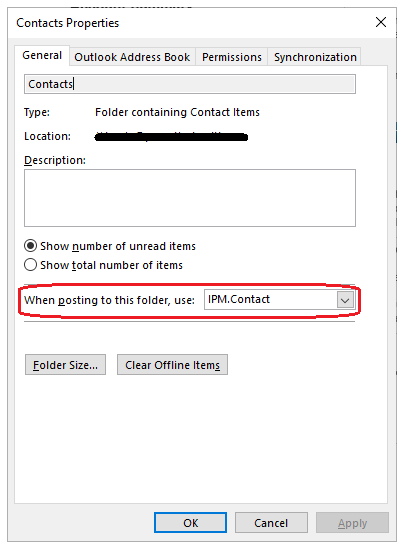
In Outlook, looking at the properties of each of the “Contacts” folders showed it set to post items as the type “IPM.Contact”.
We would expect the “Sent Items” folder to post as type “IPM.Post”, but unfortunately there is no wayy way to set this through Outlook.
Launching Outlook with the “resetfoldernames” switch made no difference.
In order to resolve the issue, we first had to edit the mailbox directly with MFCMapi.
Ensure the Outlook Profile on the machine is set to Cached Mode, and then launch MFCMapi.exe.
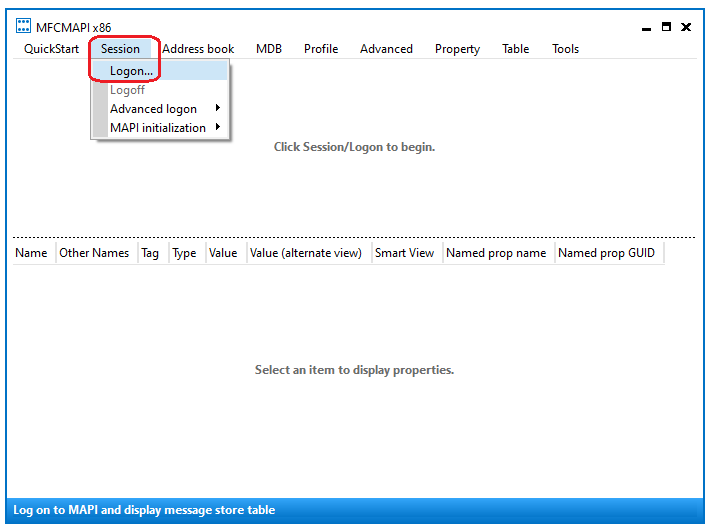
Click “Session / Logon” and logon using the profile with the lost “Sent Items” folder.
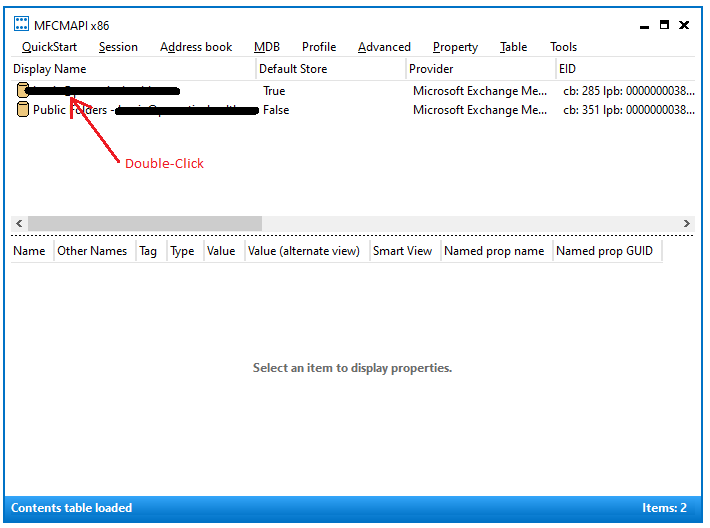
Double-click the user’s mailbox to open it.
Expand “Root – Mailbox” / “IPM_SUBTREE” and select the copy of “Contacts” that contains the “Sent Items” objects. If you’re not sure which is which, expanding the actual “Contacts” folder will show a handful of items nested underneath it related to your actual contacts and Global Address List.
***Note: In the event you do not see “IPM_SUBTREE” but do see a “Top of Information Store” folder that you can expand, it means the profile you are using is set up in non-cached mode. You should change the profile to cached mode and then reconnect.
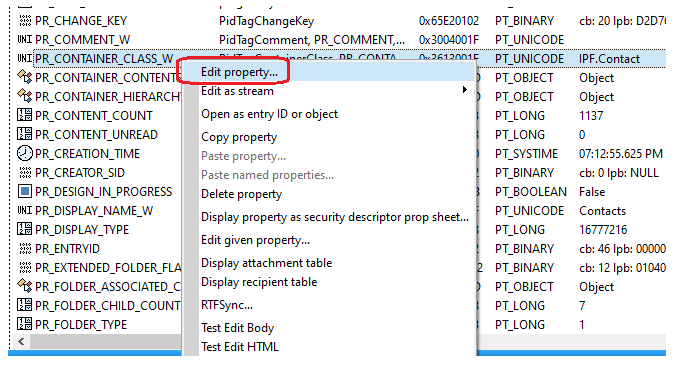
With the “problem Contacts” highlighted, there are 2 properties we need to look at updating. Right-click and select “Edit Properties” for:
PR_CONTAINER_CLASS_W
PR_CONTAINER_NAME_W
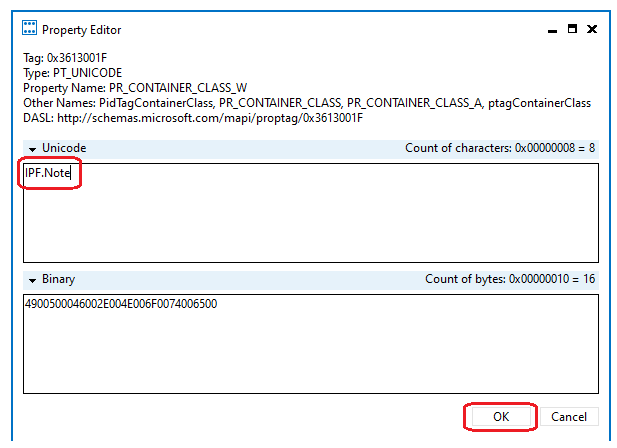
PR_CONTAINER_CLASS_W should be changed from IPF.Contact to IPF.Note
PR_CONTAINER_NAME_W should be changed from Contacts to Sent Items
***Note: When updating the “PR_CONTAINER_NAME_W” element, you may encounter the following error:
Code: MAPI_E_CORRUPT_DATA == 0x8004011B Function m_lpMAPIProp->SetProps(1, m_lpsOutputValue, &lpProblemArray) File D:\a\1\s\UI\Dialogs\Editors\PropertyEditor.cpp Line 542
If this occurs close MFCMapi and reconfigure the Outlook profile to use non-cached mode. Once confirmed, re-launch MFCMapi and try again.
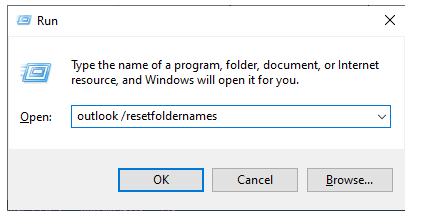
If the renaming still fails, open Outlook from a run prompt using the “resetfoldernames” switch.
At this point, even if the “Sent Items” folder is still named “Contacts”, you should be able to see all previously sent messages in the folder in both OWA and Outlook.
As Outlook completes its synchronization process, the name of the “Sent Items” folder should turn back to its regular name, and fall within the Inbox hierarchy as expected.
Jeder kennt das Phänomen wenn ein neuer User im AD angelegt wird und dieser auch ein Exchange Postfach erhält, dass dieser dann erst im schlimmsten Fall nach 48 Std. im Adressbuch am Outlook zu sehen ist.
Man kann dies erheblich beschleunigen in dem man via Exchange Manangement Shell folgende Befehle absetzt:
Anschließend muss im Outlook nur noch das Adressbuch heruntergeladen werden. Bsp: Outlokk 2013 (SENDEN/EMPFANGEN->Senden-Empfangen-Gruppen->Adressbuch herunterladen)